
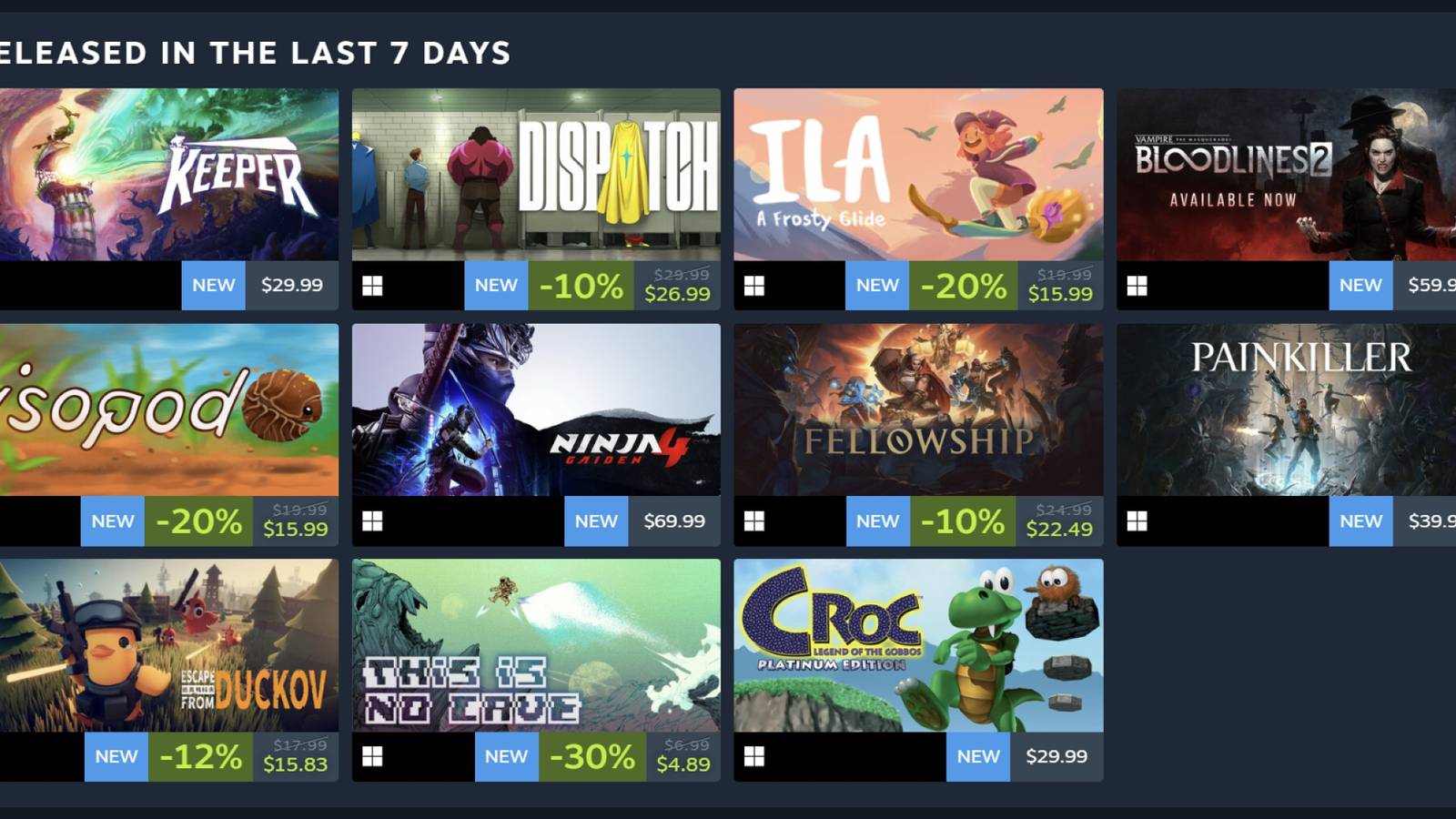
Steam's new Personal Calendar cuts through the noise by combining your wishlist and playtime into a clean release timeline. Instead of scrolling through endless new releases, you'll see only the games that match your tastes-lined up day by day for the next eight weeks. In this guide, I'll show you exactly how to access, customize, and squeeze every drop of value out of the Personal Calendar, whether you're hunting AAA blockbusters or hidden indie gems like Beast of Reincarnation and Big Walk.
What Is Steam's Personal Calendar and Why You Should Use It

Rolled out to all Steam users in early June 2026, the Personal Calendar is a Steam Labs experiment that presents a personalized, eight-week view of upcoming and recent game releases. Unlike the firehose of the main Store page, the calendar shows only titles relevant to you-pulled from your Steam wishlist and the games you play the most. It also includes a look back at releases from the past week and the past month, so you rarely miss a launch.
The magic is in the signals: any game you have wishlisted automatically appears on its release date, and the algorithm leans heavily on your established playtime habits rather than impulse clicks or demos. If you've sunk 200 hours into Stardew Valley, for example, you will see other farming sims bubbling up.
“I think this is finally the perfect way to recommend games to me.”
— PC Gamer
Early reactions have been overwhelmingly positive. It feels less like a storefront and more like a curated newsletter-especially welcome if you have ever felt paralyzed by Steam's traditional discovery tools.
How to Access the Personal Calendar: Step-by-Step Guide

There are three straightforward ways to open your Personal Calendar. Pick whichever fits your habit.
Method 1 – Homepage Module: When you are logged into Steam (desktop client or web), scroll just below the featured carousel on the homepage. You will see a small "Personal Calendar" module showing a few upcoming releases for the next five days. Click anywhere on that module-or the "View Full Calendar" link-to jump to the full page.
Method 2 – Direct URL: Open your browser or the Steam client's built-in browser and go to https://store.steampowered.com/personalcalendar. Bookmark it for one-click access.
Method 3 – Special Sections: In the desktop client's Store tab, click the "Special Sections" button next to the search bar. From the dropdown, select "Steam Labs" and then choose "016 Personal Calendar."
Once you arrive on the full page, you will see a chronological list of release dates with game tiles. By default, it shows upcoming releases starting today and stretching eight weeks out. Scroll down for the past-month and past-week views.
How to Customize the Calendar: Filters, Tags, and Display Options
The real power comes when you tune the settings. Here is how each control works.
Step 1 – Tag Filter: At the top of the page, find the dropdown labeled with a tag (initially blank, meaning "All Tags"). Click it to choose from a huge list of genres-"farming sim," "city builder," "roguelike," "CRPG," and many more. Selecting a tag instantly restricts the calendar to only games tagged with that category. Use this to focus on a specific niche.
Step 2 – Game Count Dropdown: Next to the tag filter, the "Game Count" dropdown lets you control how many titles appear. Options range from 10 to 500. For a focused, manageable view, keep it at 25 or 50. If you want to cast a wide net, crank it up to 250 or 500.
Step 3 – Hide Owned Games: Check the "Hide owned games" box to remove anything already in your Steam library. This prevents you from scrolling past titles you already own.
Step 4 – Hide Wishlisted Games: Check "Hide wishlisted games" to temporarily hide the games you have deliberately added to your wishlist. This is useful when you want to see only algorithm‑driven recommendations without your own curation getting in the way.
These preferences are saved locally, so they persist across sessions-though you may need to re‑apply them if you switch devices or clear browser data.
How the Calendar Integrates with Your Wishlist and Playtime Data
Wishlist integration is the headlines feature. Any game you have wishlisted that gets a release date (or early‑access launch) within the eight‑week window automatically appears on the calendar. You do not need to press any extra buttons. With a well‑maintained wishlist, the calendar becomes a personal launch schedule you can rely on more than any third‑party blog or video roundup.
For everything else, the algorithm uses your Steam playtime data. It compares the time you have spent in each game relative to other players. A 200‑hour Stardew Valley addiction sends a much stronger signal than a 20‑minute demo fling. The result: your feed reflects your long‑term tastes, not impulse clicks.
The calendar refreshes daily, but do not expect a complete overhaul every morning. Recommendations shift gradually as the eight‑week window moves forward and as games lock in release dates. Newly announced dates slot in as they are confirmed, and your most relevant games surface based on your evolving playtime signals.
“I've never been hugely impressed by Steam's recommendation systems... Still, the new all-in-one Steam calendars feel like an advance over filtering my wishlist.”
— Rock Paper Shotgun
Pro Tips: Use the Calendar to Discover Indie Gems Like Beast of Reincarnation and Big Walk
The Personal Calendar is just as powerful for unearthing smaller indie titles as it is for tracking blockbusters. Games like Beast of Reincarnation, a moody action RPG, or Big Walk, a cooperative exploration adventure, can easily get lost in the main store feed. But if the algorithm detects that you love similar games-or if you wishlist them-they will pop right up on your calendar.
To maximize indie discovery, be intentional with the tag filter. Instead of leaving it on "All Tags," experiment with niche categories like "experimental," "psychological horror," or "walking simulator." Combine this with a higher game count (100 or 250) to cast a wider net. And if you want to see your wishlisted indies alongside the algorithm picks, leave "Hide wishlisted games" unchecked.
A few limitations to keep in mind: the calendar skips weekends, so a Saturday release will show up on the following Monday. It will not display any game that has no set release date (those still marked "Coming Soon"). It is a companion to your wishlist, not a replacement. Additionally, wishlist sync is not always instant-recently added games may need a day to appear. Finally, if you are using Steam in Big Picture Mode, you can access the calendar through the browser or standard store interface, but it is not yet fully optimized for controller navigation; you might need a mouse or trackpad for comfortable filtering.
Level up your couch setup
Browse new releases from the sofa?
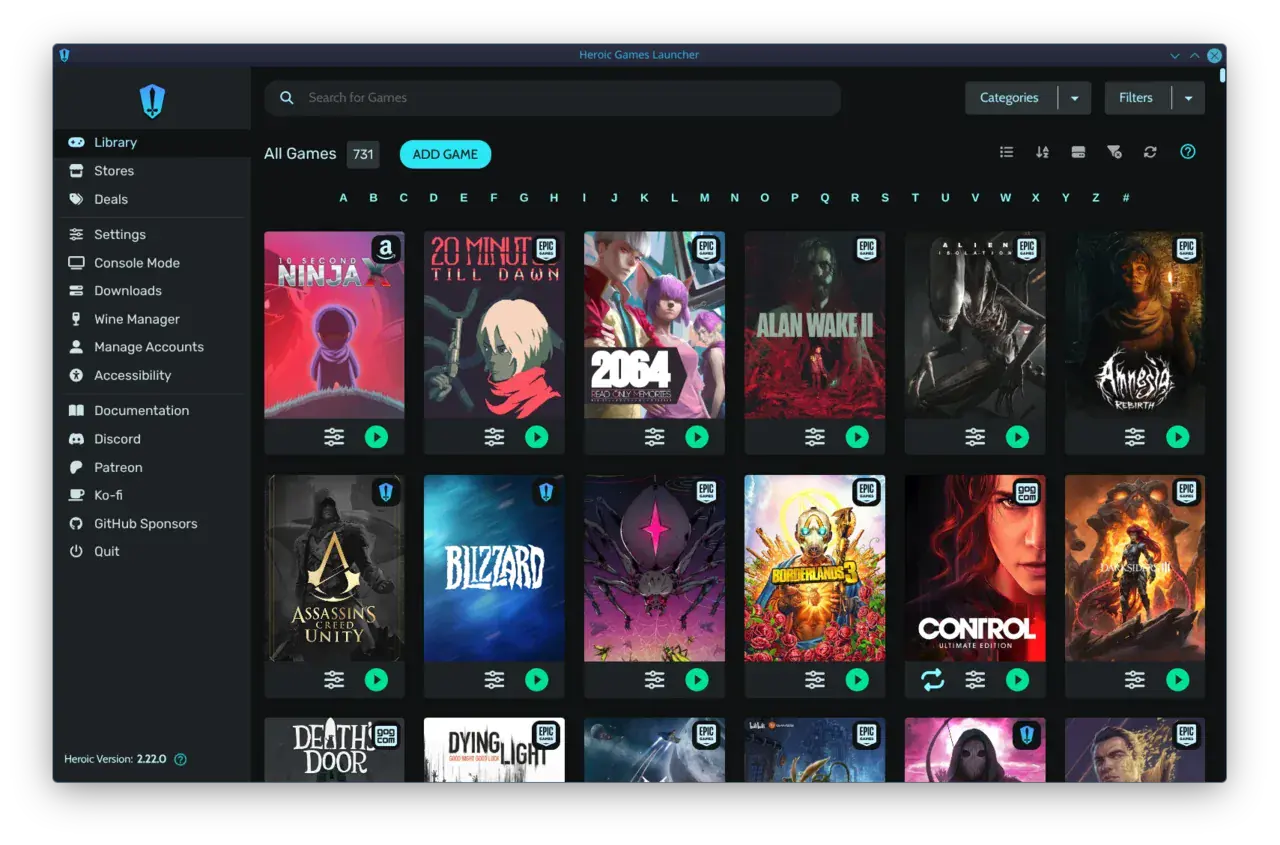
warmUP gives you a single, controller-friendly library for all your game stores. No more switching launchers with a mouse - just pick up your gamepad and dive into every new release the calendar throws at you.
Key Takeaways
- The Steam Personal Calendar is a free, personalized release feed based on your wishlist and playtime, covering 8 weeks of upcoming games.
- Access it via the homepage module, the direct URL, or Special Sections > Steam Labs > 016 Personal Calendar.
- Customize it by filtering tags, adjusting the game count, and hiding owned or wishlisted games to cut through the noise.
- Wishlisted games automatically appear on their release date, making the calendar a reliable launch tracker.
- Use niche tags and a higher game count to surface indie gems you would otherwise miss.
Written by
Mika Lindqvist
Hardware & Performance
Mika benchmarks everything that runs a game — from handhelds to living-room rigs. If a frame drops, he wants to know why.
Comments(0)
No comments yet. Be the first to share your thoughts.